Rocket Spin Mobile Casino: Web App and PWA Guide
 Available in AU
Checked 22 September 2026. The verified Rocket Spin mobile product is a browser-installed web app, commonly described as a PWA. Rocket Spin’s official install page tells Android users to open the browser menu, choose Add to Home Screen and confirm installation. On iPhone, it instructs users to open rocketspin.com in Safari, use Share, choose Add to Home Screen and confirm Add.
That is different from a verified native App Store or Google Play app. No native store listing was verified, and the official installation flow requires neither APK files nor mirror sites or block-circumvention steps. For the broader product context, see the Rocket Spin Australia review.
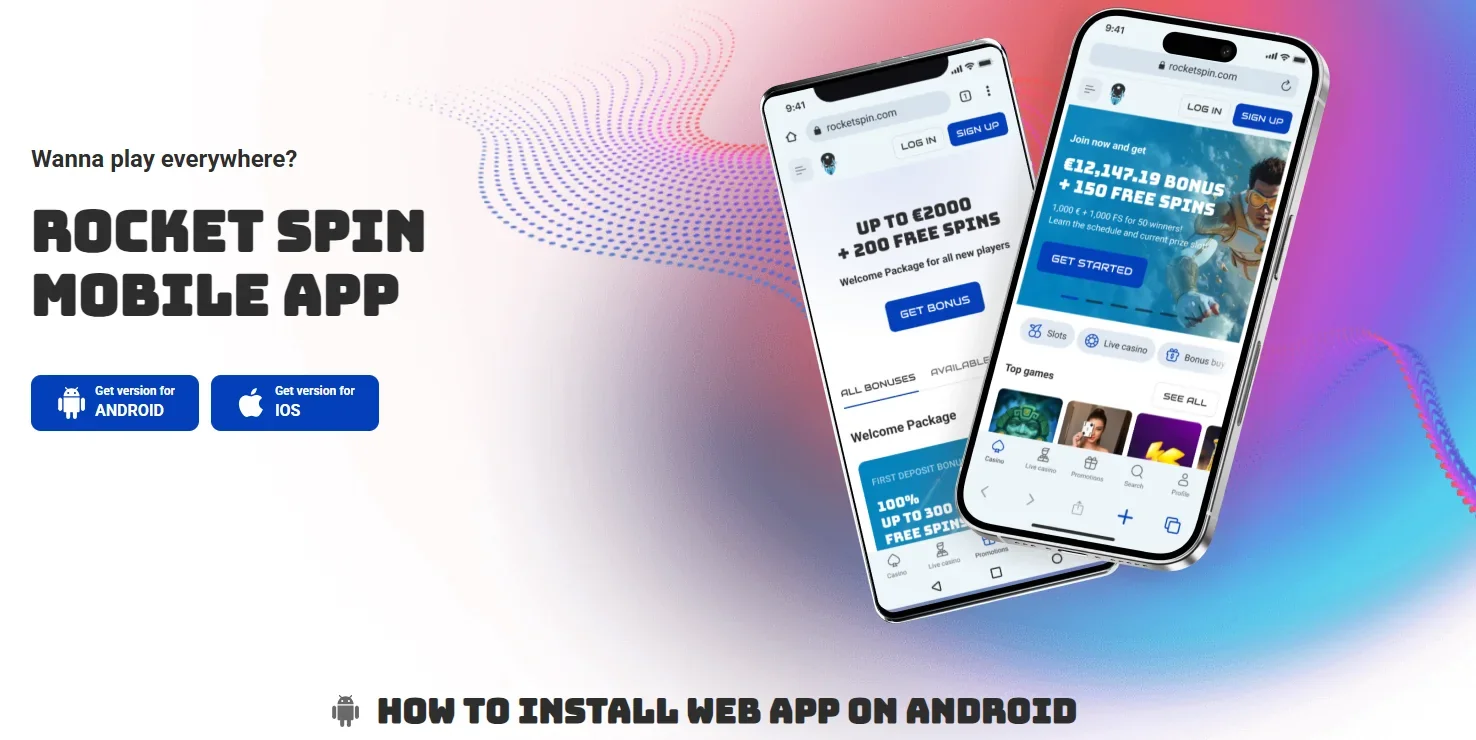
Table of Contents
- What the Rocket Spin app actually is
- Rocket Spin PWA versus a native app
- How the official Android installation flow works
- How the official iPhone installation flow works
- What the mobile web app is for
- Security: start from the official domain and verified install flow
- Unverified mobile claims
- Mobile performance: what can vary by device
- Mobile access and Australian licensing are separate issues
- Quick mobile verification checklist
- Mobile installation sources
- Rocket Spin app FAQ
What the Rocket Spin app actually is
Rocket Spin markets a mobile app experience, but the official installation instructions describe a web app installed from the browser. In practical terms, the site can be placed on a phone’s home screen so it launches from an icon without requiring the user to find the site in browser history each time.
The important distinction is how the software is delivered. A native iOS app would normally be installed through Apple’s App Store, while a native Android app would normally come through Google Play or another direct package distribution route. The verified Rocket Spin flow instead starts on the official website and uses the browser’s Add to Home Screen function.
For people searching “Rocket Spin app”, that distinction matters more than the label. It tells you where the installation should begin, what kind of update behaviour to expect, and why an unofficial APK download is not part of the verified process.
Rocket Spin PWA versus a native app
| Feature | Verified Rocket Spin web app/PWA | Native store app |
|---|---|---|
| Installation source | Starts from the official Rocket Spin website in a supported mobile browser. | Would normally start from an official app-store listing. |
| Home-screen icon | Yes, through the browser’s Add to Home Screen flow. | Normally added as part of store installation. |
| Updates | The web experience can change when the site is updated. | Native apps commonly use store-delivered app updates. |
| Verified for Rocket Spin | Yes. The official install page provides Android and iPhone web-app steps. | No native App Store or Google Play listing was verified. |
This comparison is about product type, not a claim that one delivery method is inherently better. A PWA can be convenient because it avoids a separate store download, while a native app can provide deeper operating-system integration. The relevant fact here is simply that Rocket Spin’s current official instructions use the browser-installed web-app route.
How the official Android installation flow works
Rocket Spin’s current install page gives a three-step Android process. First, open the Rocket Spin homepage and use the three-dot browser menu. Second, choose “Add to the Home Screen” from that menu. Third, confirm the selection with the “Install” button shown by the browser.
The flow keeps installation anchored to the official website. It requires no separate APK file, email attachment or third-party download portal. A page claiming to offer a Rocket Spin Android download from an unrelated domain therefore falls outside the verified installation method.
Browser wording can vary by Android version and browser, so the exact menu label on a device can differ slightly. The constant part of the verified process is that installation begins at Rocket Spin’s website and uses the browser’s home-screen installation function.
How the official iPhone installation flow works
For iPhone, Rocket Spin’s official instructions specify Safari. Open rocketspin.com in Safari, tap Share on the browser’s bottom navigation panel, find “Add to Home Screen”, and then confirm by tapping “Add”. This creates a home-screen shortcut or web-app launch point for the site.
The official instructions also make the product type clear. On iPhone, the process begins on the Rocket Spin domain in Safari rather than with an App Store search. That flow identifies the product as a web app/PWA rather than a verified native app.
What the mobile web app is for
The verified function of the installation flow is straightforward: it gives mobile users a home-screen route into the Rocket Spin web experience. The current site itself is responsive and exposes the main casino and live-casino navigation on mobile-sized interfaces. Catalogue details are covered separately in the casino game library guide.
A home-screen installation does not create a separate casino account. Login, registration, account data and verification remain part of the underlying Rocket Spin service. People who need the account workflow should use the Rocket Spin registration guide rather than assuming that adding the web app bypasses any normal account requirement.
It also does not turn the site into an offline product. Casino games, account state and payment functions depend on a network connection and on the current availability of the website and its service providers. A home-screen icon changes how the site is launched, not the basic fact that it is a web-delivered service.
Security: start from the official domain and verified install flow
The safest installation check is simple: begin on the official rocketspin.com domain and use the instructions shown there. That reduces the risk of downloading an unrelated package or following a site that imitates the brand. The verified Rocket Spin flow requires no APK mirrors, unofficial app stores or alternative domains.
Before adding the web app, check the browser address bar carefully. Brand names can be copied into search ads, cloned pages or unrelated download sites. The official install instructions specifically direct iPhone users to rocketspin.com, and the Android instructions begin from the Rocket Spin homepage. Keeping the origin check at the start of the process is more reliable than trying to judge an APK after it has already been downloaded.
Do not use a VPN, mirror or modified application to work around regional controls. Rocket Spin’s current terms prohibit VPN use to bypass geographic game restrictions. If access or a specific product is restricted, treat that as an availability issue rather than an installation problem.
Unverified mobile claims
- A native Rocket Spin iOS App Store listing.
- A native Rocket Spin Android or Google Play listing.
- An official Rocket Spin APK distributed from a third-party download site.
- A mirror domain that should be used if the main site is blocked.
- Any claim that the PWA provides offline casino play.
- Any claim that every game, payment method or account function is identical on every device.
Those boundaries match the current official install material. If Rocket Spin changes its mobile delivery model later, the official install page and app stores should be checked again before the product description changes.
Mobile performance: what can vary by device
A PWA relies heavily on the browser and the underlying web interface, so performance can vary with device age, operating-system version, browser version, connection quality and the complexity of the game being loaded. A smooth lobby on one phone does not prove the same performance on every handset.
For a practical check, test the basic navigation before relying on the home-screen install. Confirm that the casino lobby loads, menus are readable, the account interface opens correctly and the specific game category you want is usable on the device. If a game itself has performance requirements, those are separate from the installation method.
Because the web app points back to the live site, catalogue and interface changes can appear without a conventional app-store update cycle. That can be an advantage for freshness, but it also means screen images in reviews can become outdated. The current official install page is therefore the better reference for the installation steps.
Mobile access and Australian licensing are separate issues
Being able to open or install a web app is a technical access fact, not proof of local regulatory approval. Rocket Spin’s Australian licensing and ACMA position are covered on the separate Rocket Spin licence page. Keeping those issues separate prevents a common mistake: interpreting a working mobile interface as evidence of Australian authorisation.
The same separation applies in reverse. Regulatory or network restrictions do not change the verified product type. The current Rocket Spin installation instructions still describe a web app/PWA, with no need for circumvention advice to explain that delivery method.
Quick mobile verification checklist
- Start at rocketspin.com rather than an APK or mirror download page.
- On Android, use the browser menu and the Add to Home Screen installation option described by Rocket Spin.
- On iPhone, use Safari, Share and Add to Home Screen as shown on the official install page.
- Do not treat a home-screen icon as evidence of a native App Store or Google Play application.
- Check the URL before login and before entering account or payment information.
- Recheck the official install page if the browser steps or product type appear to change.
Mobile installation sources
The installation steps and web-app wording were rechecked on Rocket Spin’s official install-app page. The same page currently provides separate Android and iPhone instructions and routes both through browser-based Add to Home Screen actions. The English-AU site also links to Download App from its navigation, leading back to the official web-app flow.
Rocket Spin app FAQ
Does Rocket Spin have an app?
Rocket Spin has a verified browser-installed web app/PWA. The official installation page provides Add to Home Screen instructions for Android and iPhone.
Is Rocket Spin on the Apple App Store?
No native App Store listing was verified. The official iPhone instructions use Safari, Share and Add to Home Screen.
Is there a Rocket Spin Android APK?
The verified official Android flow does not require an APK. It starts on the Rocket Spin homepage and uses the browser’s Add to Home Screen installation function.
Do I need to create a new account for the web app?
The web app is a way to launch the Rocket Spin web service from the home screen. It does not create a separate account system.
Can the PWA be used offline?
Offline casino play is not verified. Games and account functions rely on the live web service and a network connection.
Should I use a mirror if the main site does not load?
No mirror or circumvention method is recommended here. Use the official domain and treat access restrictions as an availability or regulatory issue rather than something to bypass.
Prepared by the Rocket Spin Casino editorial staff.